
WiFi Signal Strength Meter Pro
Network Scanner - WiFi Scanner & Network MonitorTools
4.9199.00 Reviews
- Version
- 1.0.12
- Installs
- 10.00K
- Age Rating
- Everyone
Screenshots
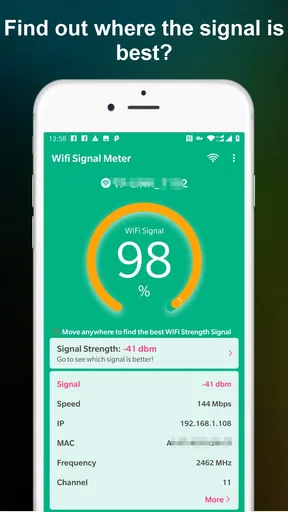
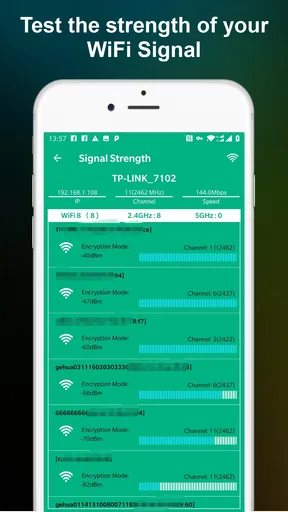
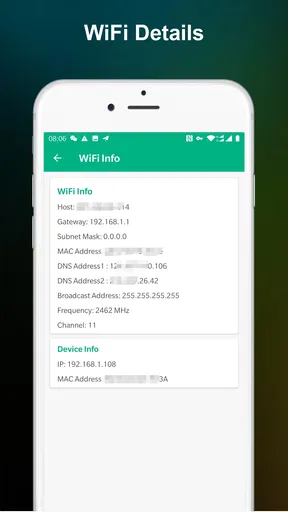
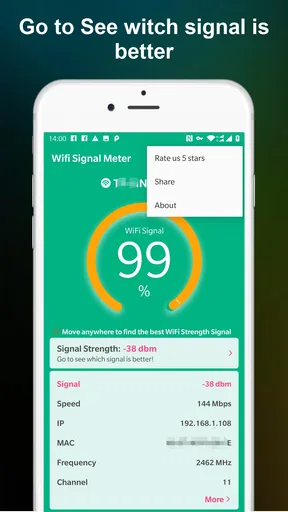
Our Review of WiFi Signal Strength Meter Pro
 Analysis by Appyee
When a video stutters in one room but works smoothly in another, it is tempting to blame your internet plan. Often, the first useful question is simpler: how strong is the WiFi signal where the device is sitting? WiFi Signal Strength Meter Pro is a small Android tool built around that kind of check. I see its appeal in turning a vague “the WiFi is bad” complaint into a practical comparison of locations, while keeping expectations realistic about what a signal meter can and cannot diagnose.
What the paid price means in practice
This is a paid app, listed at $0.49, rather than a free tool with an optional upgrade. That makes the decision fairly direct: you pay a small amount to install it, and should do so because you want a dedicated way to check signal strength, not because you expect a complete network-management suite. Its Everyone content rating and Android 6.0 minimum make it accessible to a broad range of Android users, including people with older compatible devices.
The app is in the tools category and is made by Network Scanner - WiFi Scanner & Network Monitor. It has a 4.9 average from around 1.7 thousand ratings, with over 10 thousand installs. Those figures suggest that people who find the app are generally pleased, but they do not tell me whether it will solve a particular home’s coverage problem. I would treat them as context, not as a promise of better WiFi.
What signal readings are good for
The central value here is having a way to check whether signal strength changes as you move around. A reading is most useful when you compare places under similar conditions: stand in one spot, note the result, then repeat near the desk, sofa, or bedroom where the connection causes trouble. This is more meaningful than taking a single reading and treating it as a verdict on the router.
For example, if a laptop repeatedly loses its connection at a home-office desk, I would check the signal near the router and then at the desk. A clear difference points toward a coverage or placement issue worth investigating. If the readings seem similar but the laptop still struggles, the signal meter has helped narrow the question: the problem may involve something other than signal strength, such as the device or the internet service. The app is a diagnostic clue, not a repair button.
Useful comparisons, not magic fixes
One practical way to use a meter is to test possible router positions before committing to a change. I would compare a few spots that are realistic for the router to occupy, then check the areas that matter most, rather than chasing the strongest reading in one convenient corner. A router location that improves the bedroom but leaves the work area unreliable may not be the best compromise for the household.
It can also help when deciding whether a WiFi extender is worth considering. First check the weak area, then check a nearby location where the signal is still usable. That gives you a more grounded starting point for choosing where an extender might go; placing one in the dead zone itself is unlikely to be a sensible first experiment. The meter cannot tell you that an extender will fix every cause of dropouts, but it can help you avoid making placement decisions entirely by guesswork.
For a fair comparison, keep the test device and the way you hold it consistent, and pause briefly in each location. Moving around while watching a live reading can make it harder to distinguish a real location difference from momentary variation. If several people are using the network, their activity may also change the experience of streaming or browsing without changing the basic question of whether one room receives a weaker signal.
Where it sits among the usual options
Many people start troubleshooting by using the WiFi indicator already visible on a phone or laptop. That is quick, but it is usually a rough clue rather than a convenient way to compare several locations carefully. A dedicated signal meter is useful when you want to walk a route through the home, check the same spots again after moving the router, and make a more deliberate before-and-after comparison.
At the other end, network-scanning and monitoring tools may be a better choice if your real task is inspecting connected devices or investigating a more technical network issue. A signal-strength-focused tool is a narrower fit: it helps answer “where does the WiFi seem stronger?” It should not be mistaken for a complete test of internet speed, router health, interference, or the quality of your broadband connection. If your goal is to identify why a connection is slow despite a strong signal, you will need other checks as well.
That distinction matters because signal and performance are related but not interchangeable. A strong reading does not guarantee a fast connection, and a weak reading does not establish that the internet provider is at fault. I would use the meter to decide where to investigate next, then test the actual experience on the device and service that are having trouble.
Who is likely to get value from it
I would consider it for someone who often moves a router, sets up devices in different rooms, or wants a simple way to compare coverage without starting with a complex network utility. It may be particularly handy for renters who cannot run cables or make permanent changes: checking a few possible router locations can help them make the most of the layout they have.
It also suits a small household trying to decide whether a connection problem follows a room or a device. Check the same spot with the affected device in mind, then compare it with a place where the connection behaves better. If the trouble follows one device rather than one location, buying networking equipment may be premature. If the weak experience repeatedly follows the same area, placement becomes a more plausible thing to test.
I would skip it if you expect a meter alone to identify every cause of buffering, automatically improve coverage, or replace a full network diagnostic tool. It is also a poor fit if you are looking for a way to measure your provider’s internet speed rather than assess local WiFi signal. For those jobs, a speed test or a broader network tool is a more direct starting point.
My practical verdict
With version 1.0.11, WiFi Signal Strength Meter Pro is best judged as a focused, paid utility: its value depends on whether you will use signal comparisons to make real placement decisions. The $0.49 price is easy to understand, but even a low cost is not a reason to buy an app for a problem it cannot answer. I would install it when a weak room or a planned router move gives me a specific question to investigate; I would look elsewhere if I needed speed testing or deeper network analysis.
My main advice is to use it as part of a small experiment. Check the troublesome spot, compare it with a reliable spot, change only one thing at a time, and repeat the check. That approach gives the app a useful role without asking it to promise more than signal readings can deliver. For an Android user who wants that focused check, it is a sensible little purchase; for everyone else, the built-in WiFi indicator or a different diagnostic tool may be enough.
Ever been in that situation where your WiFi is just not cooperating, and you're left wondering if it's the router's fault or just your device acting up? Well, let me introduce you to the WiFi Signal Strength Meter Pro, a handy app that might just become your new best friend when it comes to diagnosing WiFi issues.
What’s the Deal with WiFi Signal Strength Meter Pro?
Okay, so here's the scoop. The WiFi Signal Strength Meter Pro is like having a personal WiFi detective right in your pocket. The app is designed to help you figure out where your WiFi signal is strong and where it’s weak. It's super straightforward, so even if you're not a tech wizard, you'll find it easy to use.
Getting Started
First things first, downloading and setting up the app is a breeze. Available on both Android and iOS, you just head over to your app store, download, and open. No hoops or hurdles, just simple and quick installation. Once you fire it up, the app automatically starts scanning your network.
Features You’ll Love
Now, let’s talk about what this app can actually do. The interface is clean and intuitive, so you won’t need to spend ages figuring out how it works. It gives you a real-time view of your WiFi signal strength wherever you are in your home. So if you’re trying to find that sweet spot for streaming, this app will be your guide.
One of the coolest features is the signal strength map. It’s like a heat map of your house, showing you where the WiFi is strongest. This is perfect for anyone who’s trying to set up a home office or a gaming station and needs top-notch connectivity.
Why You Might Want This App
If you’ve ever experienced the frustration of a dropped Zoom call or endless buffering on Netflix, you know just how crucial a good WiFi connection is. With this app, you can easily identify dead zones in your house and make adjustments accordingly. Maybe you need to move your router or invest in a booster; this app will give you the data to make those decisions.
Using the App Like a Pro
Okay, a little tip from me to you: while the app does a fantastic job of showing signal strengths, you can also use it to troubleshoot other issues. For instance, if your speed is lagging, check the app to see if your signal strength is weak. It might not be your WiFi plan, but rather where you're trying to connect from.
Another neat trick is to use the app when you’re setting up new devices. Whether it’s a smart TV or a new laptop, knowing where your signal is strongest can make the setup process smoother and faster.
Final Thoughts
All in all, the app is a fantastic tool for anyone who relies on a strong internet connection for work or play. It’s straightforward, effective, and gives you actionable insights into your WiFi setup. So next time your WiFi is acting up, don’t just sit there in frustration—whip out this app and get to the bottom of it!
Whether you're a tech enthusiast or just someone who wants their devices to work seamlessly, this app is worth checking out. Because, let’s be real, in today’s world, who doesn’t need reliable WiFi?
Verdict
Strengths of WiFi Signal Strength Meter Pro
- Accurate signal strength measurements.
- Real-time network performance updates.
- User-friendly interface design.
- Supports multiple networks simultaneously.
- No ads for distraction-free usage.
Limitations of WiFi Signal Strength Meter Pro
- Limited to WiFi, no cellular data.
- Requires location permission.
- No offline usage capability.
- Advanced features need payment.
- Occasional connectivity glitches.
Similar Picks in This Category
View All
Google LLC4.0

Gboard - the Google Keyboard
Google LLC4.5

Google Play services
Google LLC4.3

Google Play Store
Google LLC4.9

Files by Google
Google LLC4.5

SHAREit: Transfer, Share Files
Smart Media4U Technology Pte.Ltd.4.3
Frequently Asked Questions
What features does WiFi Signal Strength Meter Pro offer?
WiFi Signal Strength Meter Pro provides real-time monitoring of your WiFi signal strength, allowing users to identify optimal locations for connectivity. In addition to a visual signal strength meter, the app includes features like detailed network information, historical data tracking, and the ability to compare multiple networks. These tools are particularly useful for troubleshooting connection issues or optimizing your home network.
Is WiFi Signal Strength Meter Pro compatible with all devices?
WiFi Signal Strength Meter Pro is designed for both Android and iOS devices, but compatibility can vary based on your device’s operating system version. Ensure that your device meets the minimum OS requirements specified on the app’s download page to guarantee full functionality. It's always a good idea to check for any available updates for improved performance and compatibility.
Does the app consume a lot of battery power?
WiFi Signal Strength Meter Pro is optimized to minimize battery consumption while providing continuous monitoring of your WiFi signal. However, like any app that runs in the background, it can contribute to battery usage. Users can manage battery consumption by adjusting the app's settings, such as reducing the frequency of signal updates or using the app only when necessary.
How accurate is the signal strength measurement?
The app utilizes your device's built-in WiFi hardware to measure signal strength, providing a fairly accurate representation of your network’s performance. However, accuracy can be influenced by factors such as device model, environmental interference, and network traffic. For the most precise results, use the app in an environment with minimal obstructions and interference.
Is there a cost associated with using WiFi Signal Strength Meter Pro?
WiFi Signal Strength Meter Pro is available as a paid app, offering a one-time purchase option for access to all its features without ads. This ensures a seamless user experience with no interruptions. The investment is worthwhile for users who require detailed and reliable WiFi analytics for personal or professional use.
